MFA in Plain English: Why That Extra Step Saves Your Accounts
Someone in Nigeria has your password. Not because they targeted you. Because a website you used in 2019 got breached and your login credentials ended up in a database that's been bought, sold, and traded among criminals for years. Bots try those credentials against Gmail, banks, PayPal, and Amazon automatically.
If you use multi-factor authentication (MFA), those bots hit a wall. They have your password but they don't have your phone. The attack stops there.
If you don't use MFA, they're in.
That's not a hypothetical. That's how most account takeovers happen. Here's exactly what MFA is, which kind to use, and how to set it up on the accounts that matter.
What MFA Actually Is
MFA means you need two things to log in: something you know (your password) and something you have (your phone or a physical key).
If someone steals your password, they still can't log in because they don't have the second factor. It's like a deadbolt behind your regular lock. Even with the key to the first lock, they're not getting through the second one.
There are different types of "something you have." Some are better than others.
The Types of MFA, Ranked
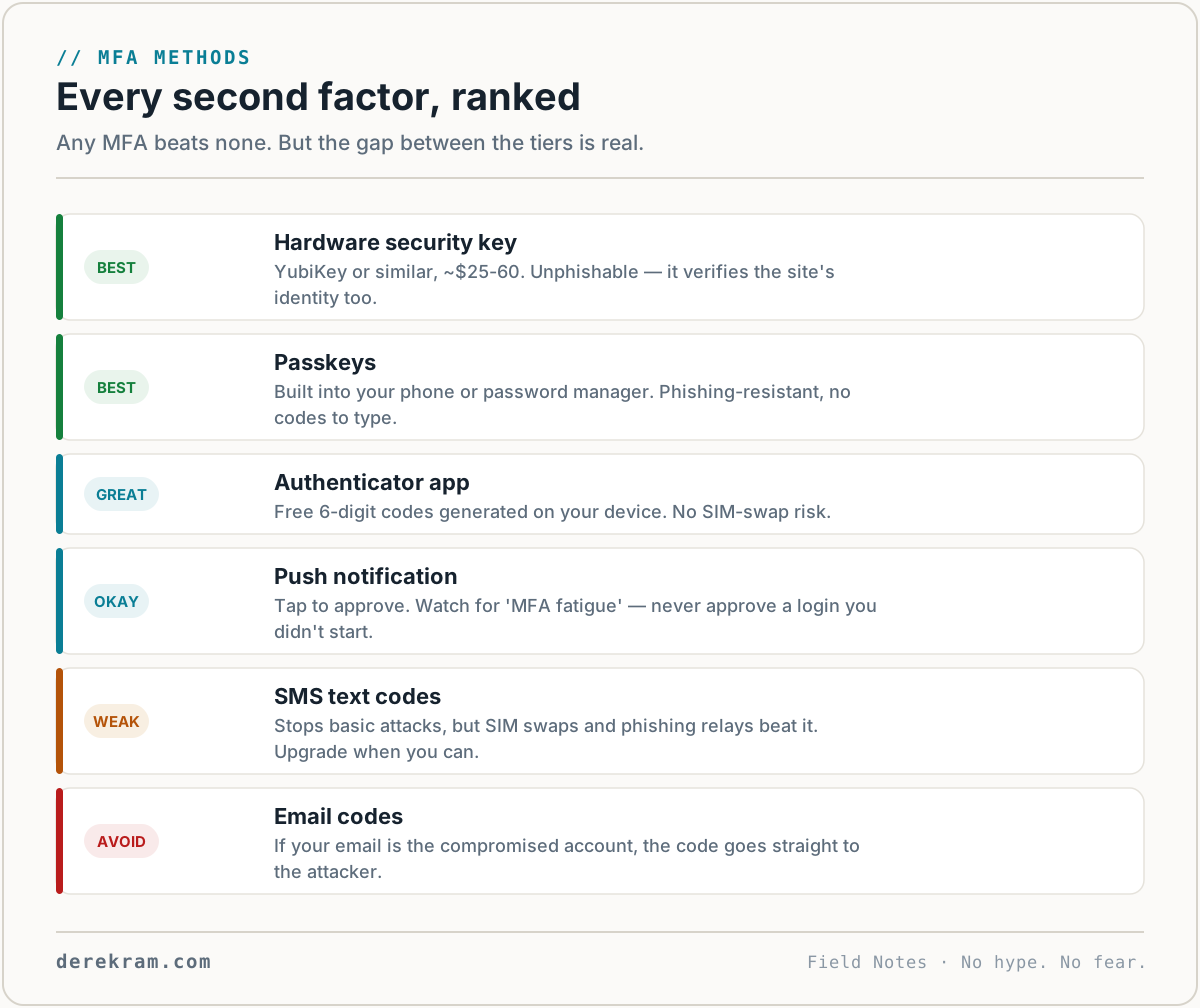
Best: Hardware Security Key (YubiKey, Titan)
A physical key you plug into your USB port or tap against your phone. Unphishable — even if you accidentally type your password into a fake login page, the key won't authenticate with the fake site because it verifies the site's identity too.
I use a YubiKey for email and anything that supports it. $25-60. Works for years. The gold standard.
Great: Authenticator App (Authy, Google Authenticator, 2FAS)
An app on your phone that generates a 6-digit code that changes every 30 seconds. You type this code after your password. The code is generated on your device using a shared secret — no cell signal needed, no SIM-swap risk.
This is what I recommend for most people. Free. Works for almost everything that supports MFA. Download Google Authenticator (now syncs encrypted backups to your Google account) or 2FAS (free, open source, works on both platforms).
Okay: Push Notification (Duo, Microsoft Authenticator, Google Prompt)
Instead of typing a code, you get a notification on your phone: "Are you trying to log in? Tap Yes or No." Better than codes because you can't be tricked into typing a code into a fake website. Worse than hardware keys because someone could accidentally tap "Yes" on a flood of notifications (MFA fatigue attacks).
Weak But Better Than Nothing: SMS / Text Message Codes
A code texted to your phone. Someone needs your password AND access to your phone's text messages. This stops most attacks. But:
SMS is better than no MFA. But upgrade to an authenticator app when you can.
Don't Use: Email Codes
"Enter the code we just emailed you." If someone has your email password, they're already in your email — which is where the code goes. This defeats the purpose.
Which Accounts to Protect First
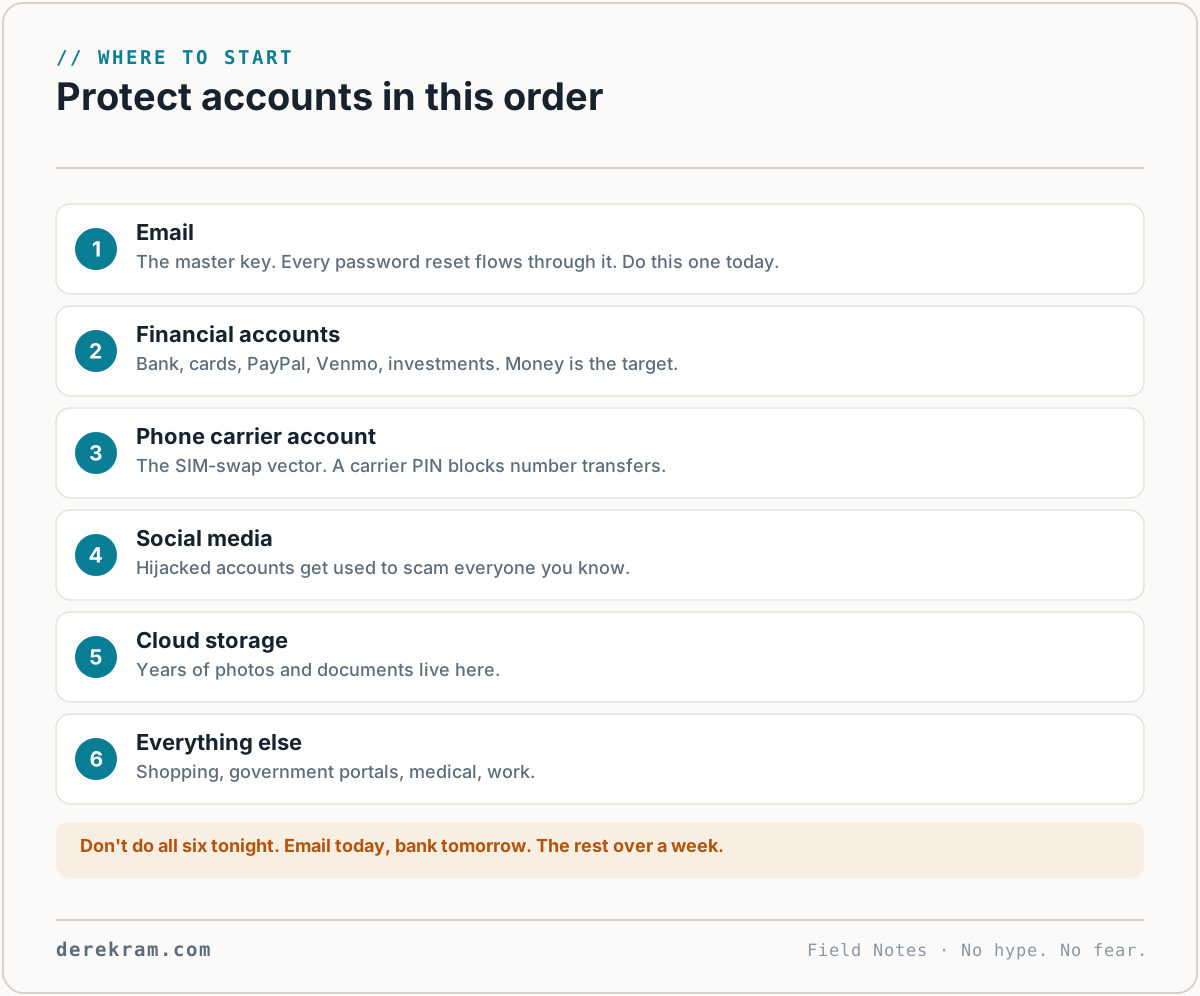
Prioritize in this order. Do the first one today. Then the next one tomorrow. Don't try to do everything at once.
1. Email (Gmail, Outlook, Yahoo, Proton). Your email is the master key. Password reset emails for every other account go here. If your email has MFA, everything else gets harder to compromise. If your email doesn't have MFA, nothing else matters.
2. Financial accounts. Bank, credit cards, PayPal, Venmo, investment accounts, crypto exchanges (if you have them). Money is the target. Protect the money.
3. Phone carrier account. Your cell provider's website. This is the SIM-swap vector. If someone gets into your carrier account, they can transfer your number and intercept SMS codes. Protect this.
4. Social media. Facebook, Instagram, Twitter, LinkedIn. Account takeovers here are used for scams against your contacts. "Help! I'm stranded in London and need money wired!" — sent from your account to everyone you know.
5. Cloud storage. iCloud, Google Drive, Dropbox. Years of photos and documents. Also the vector for ransomware: if you sync everything, encrypted files can overwrite your good copies.
6. Everything else. Shopping sites with saved payment methods. Government portals. Medical records. Work logins.
How to Actually Set It Up
The process is similar for most services. Here's the general flow:
1. Go to Account Settings → Security → Two-Factor Authentication (or Two-Step Verification)
2. Choose "Authenticator App" as your method (not SMS if you have the choice)
3. Open your authenticator app, tap "+" or "Add Account"
4. Point your phone camera at the QR code on screen
5. Enter the 6-digit code from the app to confirm
6. Save the backup codes they give you somewhere safe (NOT in your email, NOT in a file named "backup codes" on your desktop)
Backup Codes: Don't Skip This
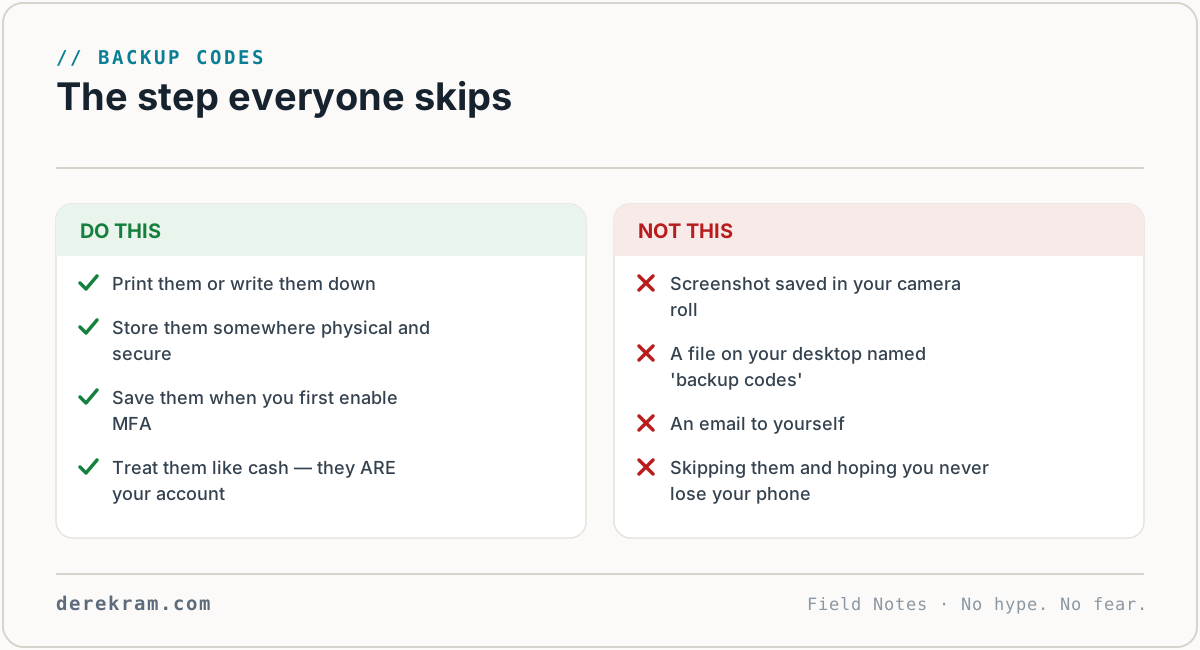
When you set up MFA, the service gives you backup codes — usually 8-10 single-use codes. These are for when you lose your phone, break your YubiKey, or can't access your authenticator app.
Print them. Write them down. Store them somewhere physical and secure — not in your email, not on your computer. If your house burns down with your phone and your YubiKey in it, these codes are how you don't also lose your accounts.
Most people skip this step and then post on Reddit six months later: "Help I can't get into my account and I don't have my backup codes." Don't be that person.
What If a Service Doesn't Offer MFA?
Some older services, smaller banks, or niche websites don't support MFA. In those cases:
Yes, It's Slightly Annoying
Typing a 6-digit code adds 10 seconds to your login. I know. It's friction.
Here's the trade you're making: 10 seconds per login vs. potentially losing your email, your bank account, and everything connected to them.
The math isn't close. Enable MFA on your email today. Then your bank tomorrow. The rest can wait until next week.
Get the 5-Minute Digital Safety Checklist — MFA setup guide, password manager setup, credit freeze links, and breach check. All in one page. Free.
Get the 5-Minute Digital Safety Checklist
Four things that make you harder to target. No jargon. No fear. Free.
Get the Checklist →